













Using offline maps on a KOSPET Smartwatch ensures you stay on the right path regardless of your phone signal strength. Many remote hiking trails are located in dead zones where cellular data fails to load. This guide explains how to use your watch as a standalone navigation tool to prevent you from getting lost.
You will learn the exact steps to download maps and follow custom routes using the latest technology on your wrist. These steps ensure that you remain safe and confident during every outdoor adventure. This technology allows you to explore nature while keeping your location data accurate and accessible at all times.

Why an Outdoor GPS Watch for Hiking Needs Offline Capabilities
Offline maps provide constant location data because the files are saved directly on the watch hardware. A standard smartphone requires a connection to a cell tower to update its display. When you move deep into a forest, the phone map often turns into a blank screen.
An outdoor GPS watch for hiking solves this problem by using its own memory to store geographic information. This local storage allows the watch to function perfectly in any weather or location. You can view your current position relative to the trail even in the most isolated canyons.
Having a map on your wrist also saves your phone battery for emergency calls. Relying on an independent GPS device is a standard safety practice for experienced hikers to ensure they return home safely.
KOSPET TANK T4 and M4 Built for Rugged Exploration
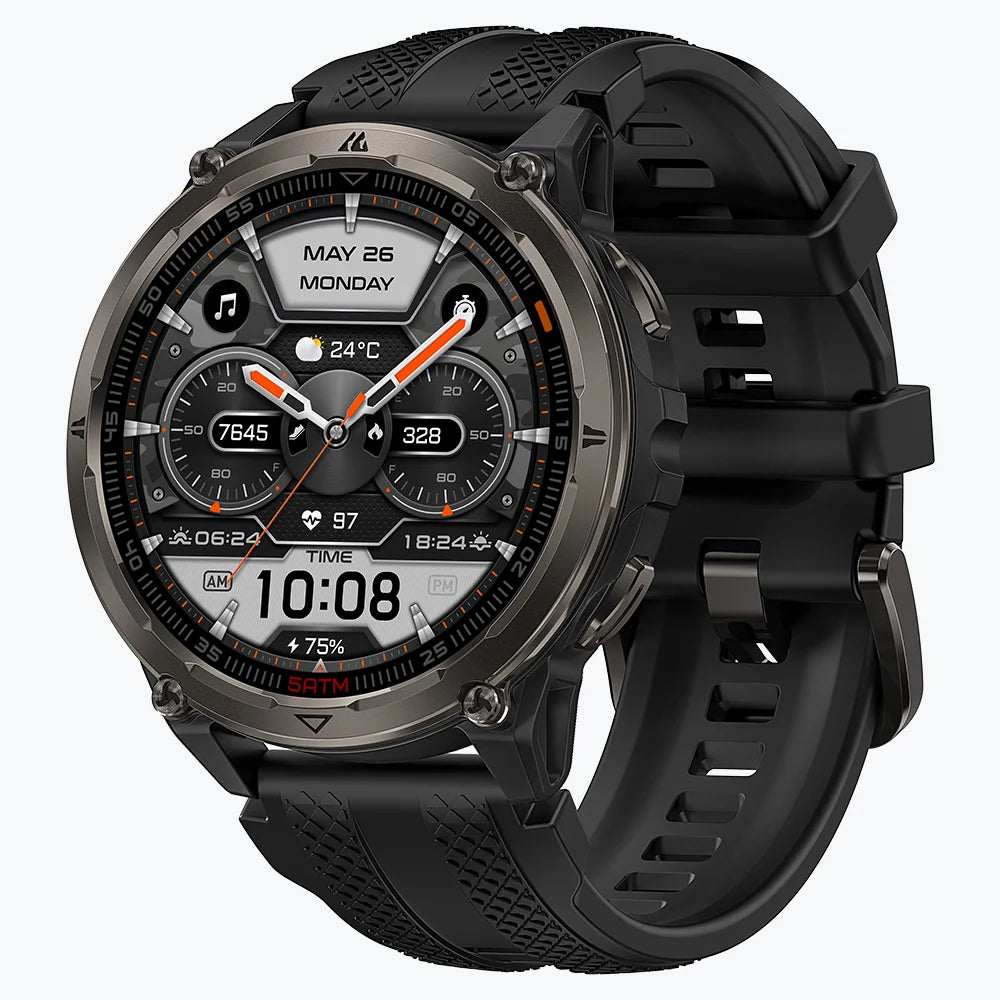
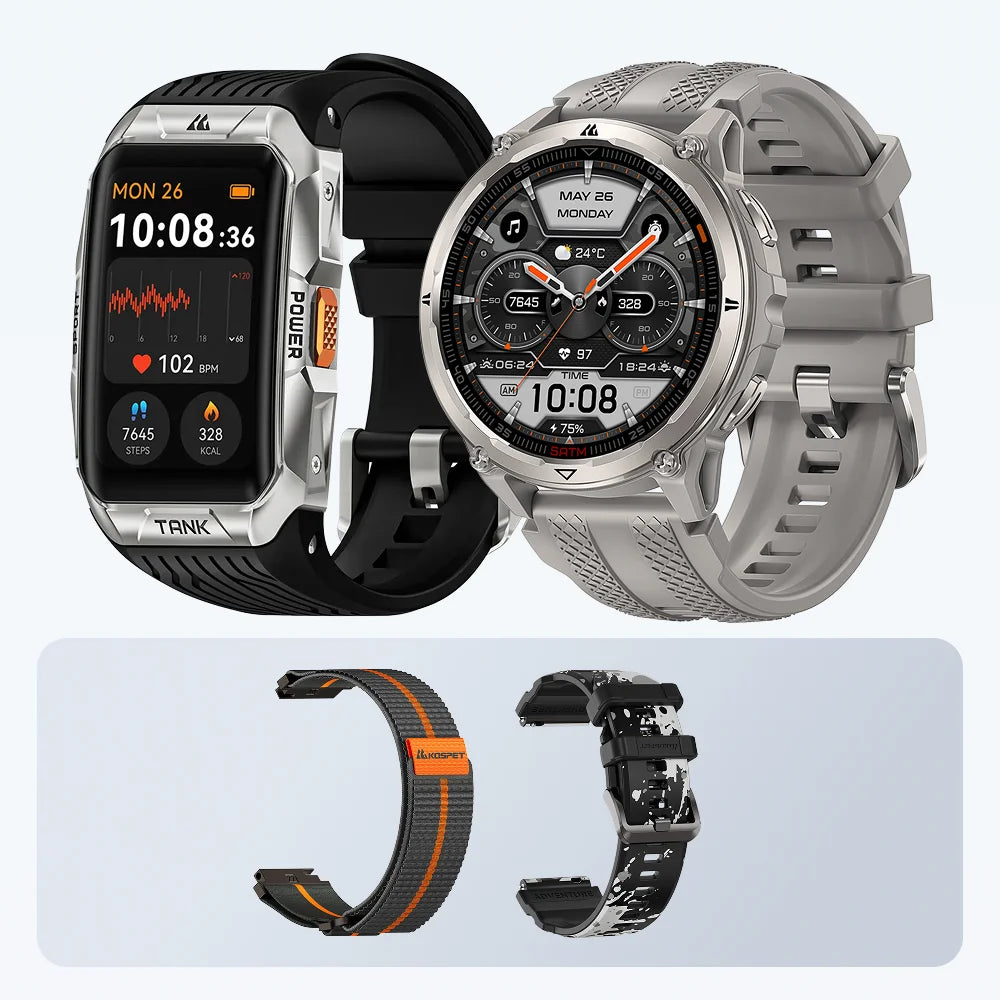
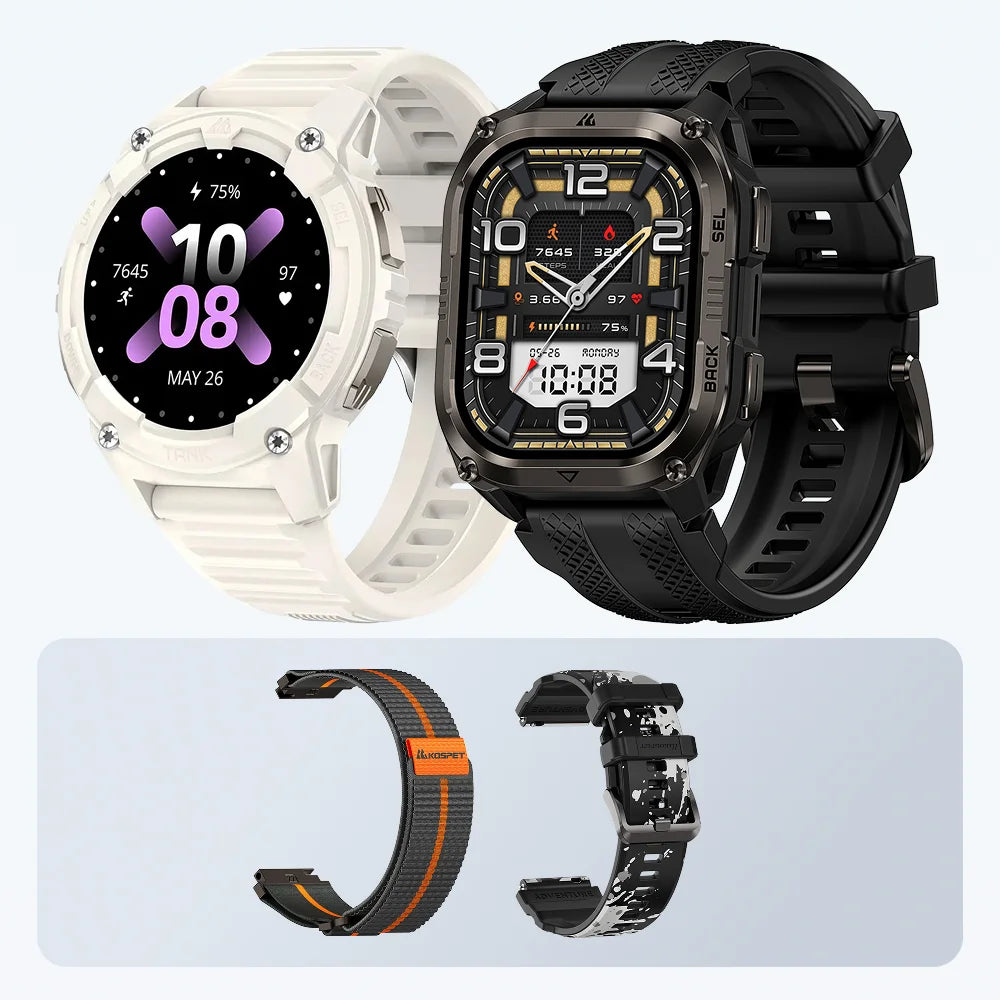
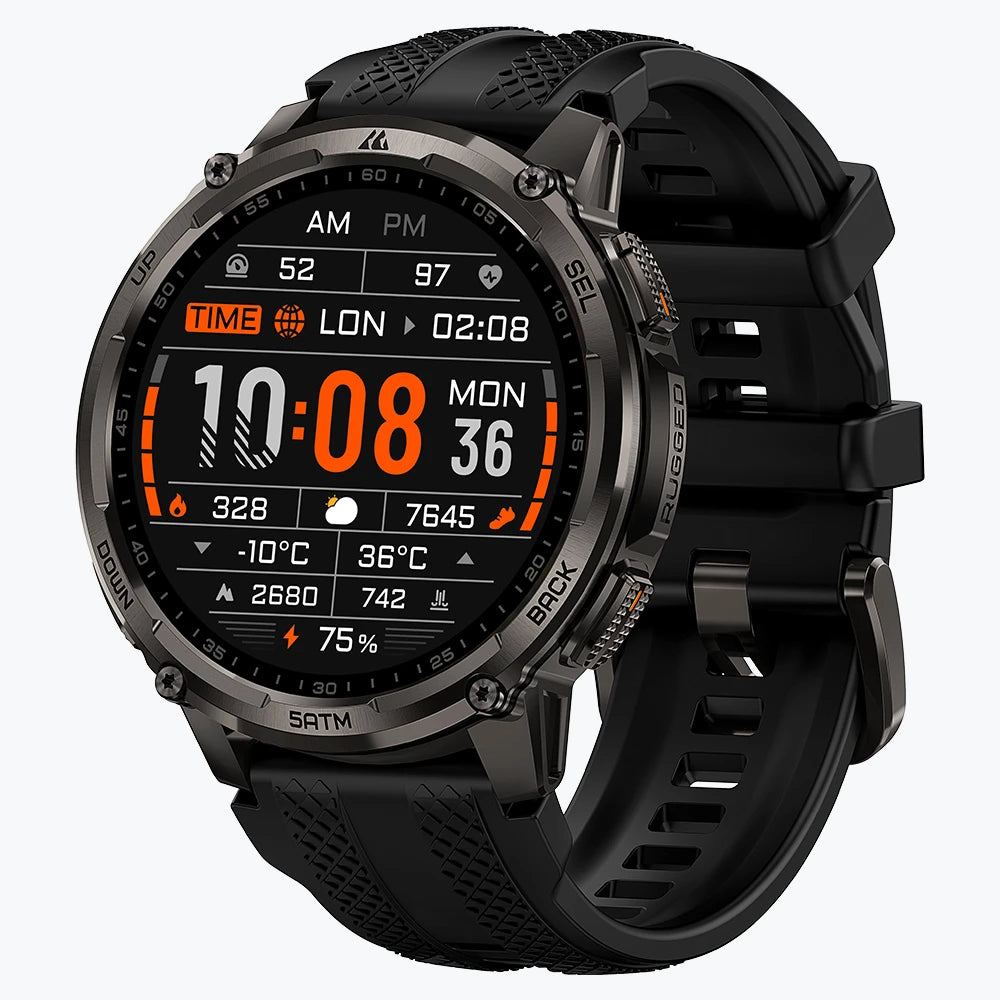
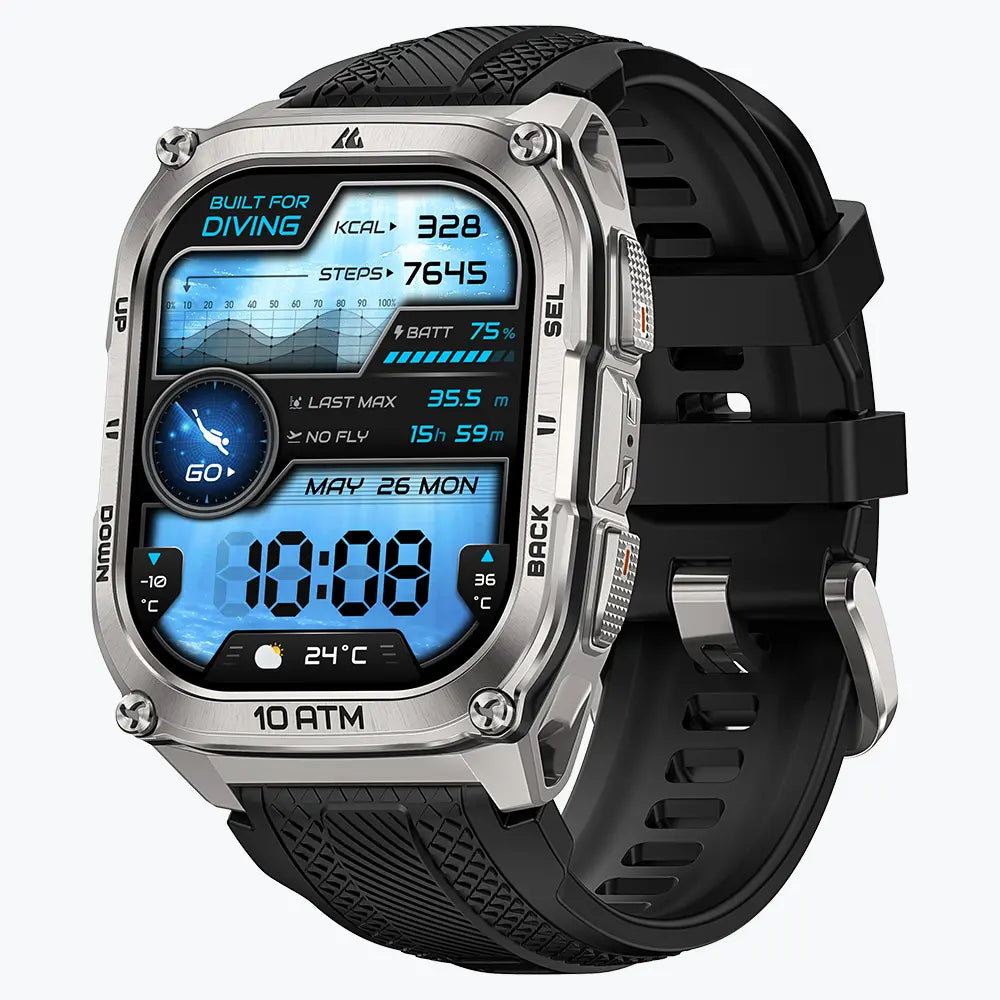
The KOSPET TANK T4 is a durable round watch that offers clear navigation for traditional outdoor enthusiasts. This model features a stainless steel bezel and a rugged body that meets high military protection standards. The round AMOLED display provides a sharp view of your location markers while maintaining a traditional outdoor look.

KOSPET TANK T4 Special Edition Smartwatch
219,99 €EUR
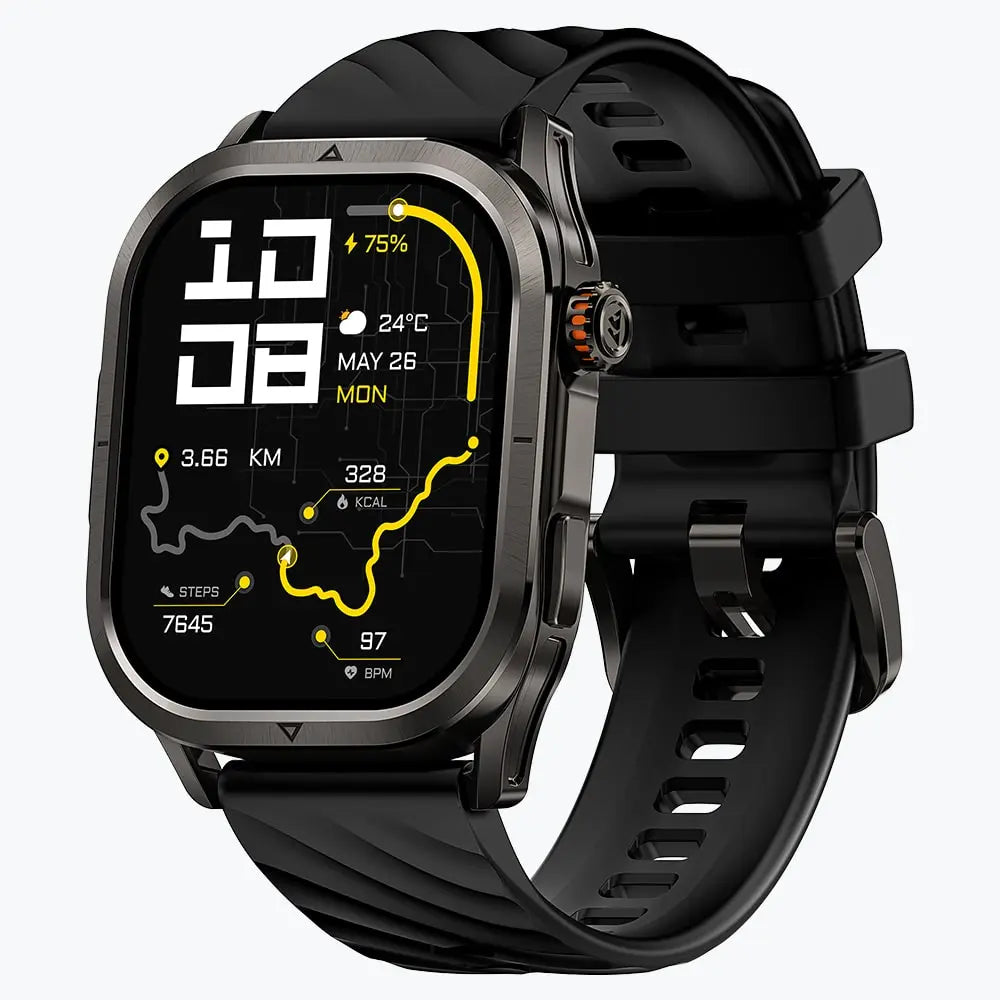
The KOSPET TANK M4 features a large rectangular screen that allows you to view a wider portion of your hiking path at once. This square design is very efficient for reading text and following long trail lines. Hikers who prefer seeing more map data without scrolling often choose this model because the layout is easy to read while moving.

Both models utilize dual band GPS technology to maintain a strong signal under heavy tree cover or near high cliffs. This system uses two different frequencies to calculate your position more accurately than a standard smartwatch. The screens are bright enough to remain visible under the direct midday sun, making the TANK series a reliable platform for offline maps.
How to Download and Sync Offline Navigation Data
The Apexmove app is the required software for managing your map data and syncing routes to your watch. You must establish a Bluetooth connection between your phone and the watch before you begin. It is best to perform these steps while you are at home with a strong Wi-Fi connection.
You can search for the specific park or mountain range you want to visit inside the app. The app allows you to select a specific square on the map to download directly to your phone. This ensures the data is ready for the watch to use later without needing a network.
After the map download is finished, you must transfer the data to your TANK T4 or M4 watch. This sync process puts the map data into the watch storage so it is ready for your hike. You should always open the map on your watch to confirm it is working before you leave for your trip.
Step-by-Step: Importing GPX Files for Custom Hiking Routes
Importing GPX files is the best way to follow a specific path created by professional hikers. Following a pre-set digital line provides a clear plan for your entire journey from start to finish.
- Find a GPX file for your trail on a hiking website or a mobile app.
- Download the file to your smartphone memory.
- Open the Apexmove app and go to the route management section.
- Select the GPX file from your phone and upload it to the app.
- Send the new route to your KOSPET TANK T4 or M4 using the sync button.
- Check the sports menu on your watch to see the new route in your list.
- Confirm that the route line appears correctly over the map you downloaded.
Mastering GPS Tracking and Map Interaction on the Trail
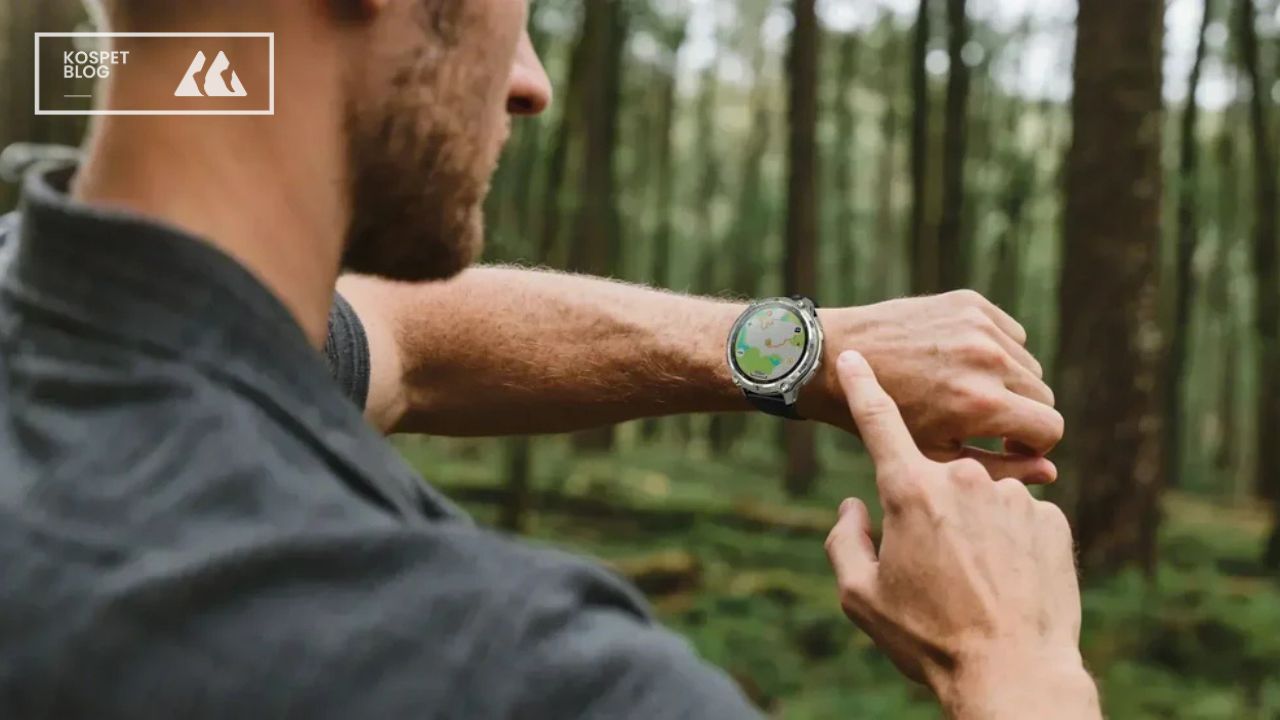
KOSPET watches display a simplified vector map that focuses on your trail line and the surrounding paths. You must start the hiking workout mode on your watch to activate the GPS tracking features. Swiping the screen allows you to switch from your heart rate data to the navigation screen.
The watch shows your movement as a small arrow that points in your current direction. This helps you stay aligned with the path on the screen so you do not wander off the trail. Having this information on your wrist allows you to keep your hands free for using trekking poles.
You use the physical buttons on the side of the TANK T4 or M4 to zoom in for more detail or zoom out for a wider view. Zooming in is very helpful when you reach a complicated intersection of many different paths. This prevents you from taking the wrong turn in areas that look confusing.
The Track Back feature provides a digital line that leads you back to your starting point. When you are ready to return, the watch guides you along the exact path you already walked. This tool is very helpful when the sun starts to set or the trail becomes hard to see.
Conclusion
Mastering these navigation tools makes your hiking trips safer and more organized for hikers of all levels. The combination of the Apexmove app and the TANK series watches gives you a professional navigation system on your wrist. You can enjoy your hike with the confidence that you know your exact location.
FAQs
Do I need to keep my phone connected to the watch while I am hiking?
The watch works as a standalone device once the maps and routes are synced. The built in GPS chip in the TANK T4 and M4 finds your location using satellites. You can keep your phone in your backpack to save power.
How many different maps can I store on the TANK T4 or TANK M4?
The number of maps depends on the size of the geographic areas you choose. Small trail systems take up very little space while large parks require more memory. You can remove old maps in the Apexmove app to create space.
What should I do when my GPX route does not match the map on my screen?
You should compare the route and the map inside the Apexmove app before you start walking. Differences sometimes happen because map files come from different providers. You should follow the GPX line as your primary guide.








Leave a comment
This site is protected by hCaptcha and the hCaptcha Privacy Policy and Terms of Service apply.